This email address is being protected from spambots. You need JavaScript enabled to view it.

Joomla - How to backup or move site

Enable access for remote computer to your MySQL server from your host admin interface (cPanel: go to Databases/Remote MySQL/Add Access Host, WebMin: go to Edit Databases/Remote Hosts). Enter your IP address  (IP address of your local computer: find out your IP at www.whatismyip.com), or you can enter whole range of IP addresses (not recommended) using '%' wildcard (e.g. 93.143.%.%)


Download SqlYog and install on your computer, setup connection: host=your site domain (e.g. mydomain.com), user= mysql user (usually same as ftp and web admin username). Connect to your database.


joomla_h11_1a.jpg


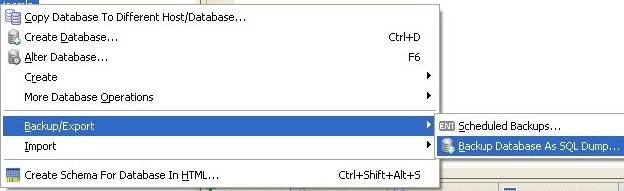
Select Joomla database (usually has suffix _joomla) and from context menu select Backup/Export/Backup as SQL dump, save database as SQL text file on your local computer, leave all default settings (Structure and Data option must be selected).
 

joomla_h11_2b.jpg


Using FTP client, login to your site and download /images directory and that's it, now you made your Joomla web site backup on your local computer. Some host web admin interfaces provides means to automate and schedule backups, but I think it's best to keep your website backup at your local computer just in case if hosting machine is destroyed by earthquake or nuclear attack.

To move your Joomla web site to another host, just install Joomla with all extensions as before and restore database and upload images. Probably it's best to use same version of Joomla and all extensions so it's good practice to keep in your local folder latest installation of Joomla and each extension/template that you installed on your Joomla site, so you can transfer them all to the new site.

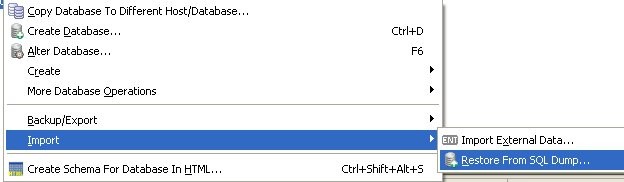
How to restore MySQL Joomla database from SqlYog: connect to the database, select joomla database from list, from context menu select Import/Restore From SQL Dump.
 

joomla_h11_3a.jpg


See list of all Joomla mini how to's from this site
Joomla - How to secure your Joomla website

  1. Change default Administrator username and Name: go to Site/User manager and change username to something other then admin or administrator. Joomla password should be different then one used for host/ftp/e-mail administration to prevent eventual intruder access to all your protected resources.
  2. If you have web site hosted on Linux server then make .htaccess file and upload it in /administrator sub-directory of your Joomla installation and limit access to only few IP addresses to your /administrator sub directory. See how to restrict access to web site by IP address.
  3. In root Joomla directory edit htaccess.txt and uncomment lines (remove # at start of each line):

    <Files ~ "\.xml$">
    Order allow,deny
    Deny from all
    Satisfy all
    </Files>

    then rename htaccess.txt to the .htaccess. This Joomla .htaccess file will restrict access only to index.php and few additional types of the files. Test your site availability, if you experience problems, you can add additional file types in RewriteCond %{REQUEST_URI} (/|\.php|\.html|\.htm|\.feed|\.pdf|\.raw|/[^.]*)$ line, e.g. to allow access to the *.asp files (does not make sense, but for example), just add one more OR condition at end of list after .raw:  RewriteCond %{REQUEST_URI} (/|\.php|\.html|\.htm|\.feed|\.pdf|\.raw|\.asp|/[^.]*)$

  4. Additionally you can password protect access the /administrator sub-directory (see how to password protect web site directory). You should use username and password other then used for your website and Joomla administration.


See my advanced anti-hack guide on how to secure Joomla website advanced

See details on how to secure Joomla website at SiteGround

See list of all Joomla mini how to's from this site
 

Joomla - How to link internal articles

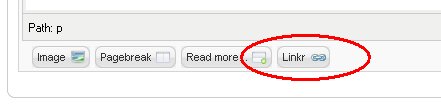
One important thing that's is missing in Joomla is ability to easily link internal articles. One obvious way is to go to that article from your browser and to paste the URL link into your html editor, but this is so lame and hard when you have many internal links. To automate generation of internal links you must install extension. I recommend to install more powerful HTML editor as JCE which already has ability to link internal articles by picking article that you want from selection menu. Only downfall of this editor is that it is ten times slower then TinyMCE and Spell Checker does not work as it should be (tested version 157-156). If you want to keep good old TinyMCE editor you can install Linkr extension which is used to link internal images and articles by selecting it from list. Linkr button appear in the bottom of your HTML editor:


joomla_h10_1.jpg


See list of all Joomla mini how to's from this site
Joomla - How to enable friendly URL (Aliases)

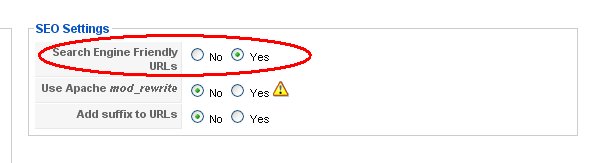
By default Joomla uses cryptic format to link internal articles such as: index.php?option=com_content&menuid=56&itemid=89 This link is permanent and can be bookmarked, but it's not very nice looking and search engines can have problems tracking those URL. When you enable friendly URL's in Site/Global Configuration, your URL's wil be formatted by use of article and menu item aliases. So if you wonder why aliases are for, now you know why. So your URL will look something like this: mysite.com/index.php/article_alias or if article is in submenu then parent menu alias will be used: e.g. mysite.com/index.php/parent_alias/article_alias


joomla_h9_1.jpg


Warning 1: Joomla allows to use same alias for more then one article/menu and this can lead to confusion as you never know what article will be shown.

Warning 2: When you change article alias, every internal link to that article mus be changed too, so when linking internal articles use non-firendly URL syntax. See how to link internal articles.


See list of all Joomla mini how to's from this site

Joomla - How to change date format

Every Joomla page can display created and modified datetime of the article. Default format is defined by currently used language pack. If you want to change datetime format then you have two options:

  1. Change currently used language pack. You can download and install Croatian language pack from here
  2. Manually edit en-GB.ini file inside /language/en-GB directory if en-GB is default lang pack. Change entry for DATE_FORMAT_LC2, e.g to set datetime format to day.month.year use DATE_FORMAT_LC2=%d.%m.%Y For details on how to format date see php manuals as this is php format string.


See list of all Joomla mini how to's from this site

Joomla - How to use different HTML editor

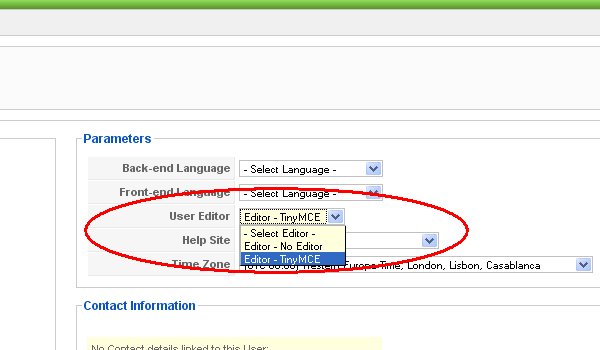
You can have more then one web HTML editor installed in your Joomla system and each Joomla user can use own editor. Go to Joomla Extensions site and download what ever editor you want. Install extension (see how to install extension). To change currently used editor for any user (or just administrator), go to Site/User Manager, edit user, and under User Editor list choose editor that will be used by this user.


joomla_h8_1.jpg


See list of all Joomla mini how to's from this site