
Joomla - How to publish article
In Joomla Admin interface there is 'Published' check box in few different places (Article Manager, Menu Item Manager) that can confuse new users into making them thinking that article or menu (with menu items) is somehow automatically published/visible on the website if this check-box is checked, but this is not true. So let us see how can we actually publish our article. Article can be published on your site in two ways:
1. Directly on the front/home page (if default menu item is of the front page layout type which is default)
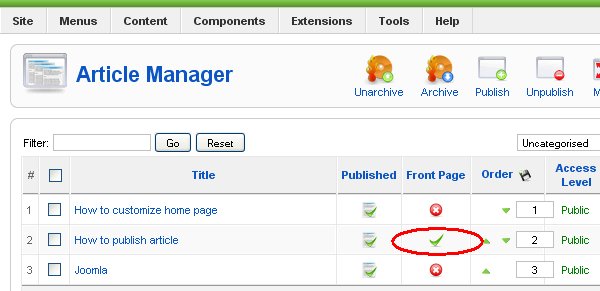
Once created, you can publish article directly on Front Page by checking 'Front Page' 'Yes' in the Article HTML editor form or icon FrontPage in Article Manger list (see pictures). That's it. 'Published' check-box is only used to hide or 'unpublish' visible article from website (from menu, category or from front page).
Way 1: Publish the Article on the Front Page in the Article edit window by checking 'Yes' Front Page radio button.

Way 2: Publish the Article on the Front Page by checking Front Page article icon in the Article Manager.
Note: this case is only valid if default menu item is of the front page layout which can be changed. See difference between front page and home page and how to customize home page.
2. Article can be published by connecting article to the menu item of the menu
Create menu and appropriate menu item with Article Layout type and assign Article that you wish to publish. Go to Extensions/Modules, search module named as your Menu, then press Enable, that's it! Let's go step by step on how to create menu with one menu item of the single Article layout type:
Step1: create article, set published: 'yes' and front page: 'no', see instructions on how to create article.
Step2: open Menu manager from Menus/Menu manager.

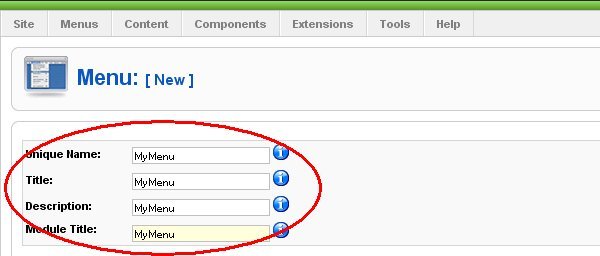
Step3: click 'New' and create Menu called 'MyMenu'.
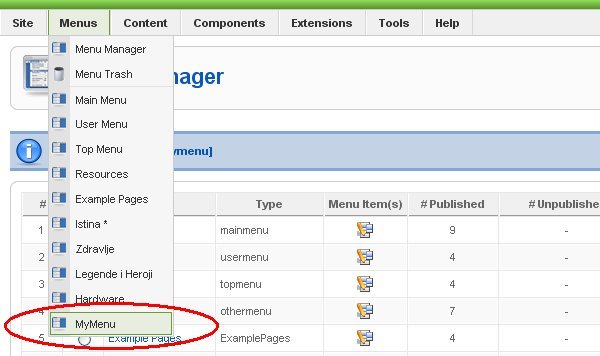
Step4: in Menus dropdown list 'MyMenu' entry should be visible, click on it to open Menu Item Manager window.
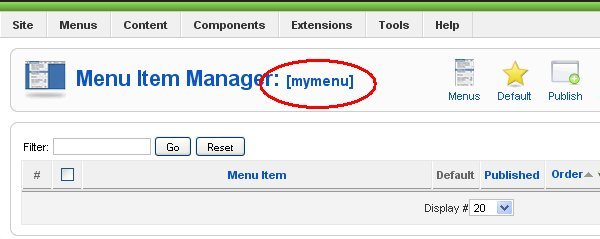
Step5: click on 'New' button from Menu Item Manager to create new menu item.
Step4: window with all possible layouts for new menu item should appear, select Internal/Article/Article Layout.
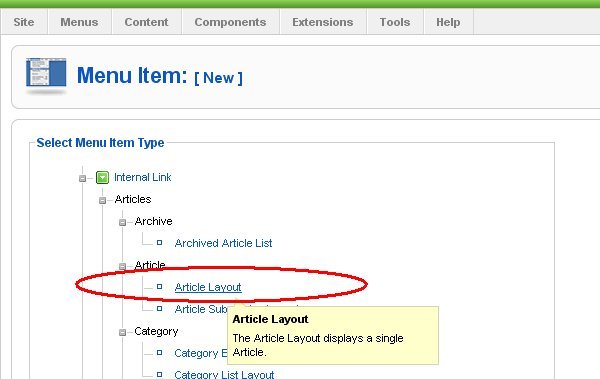
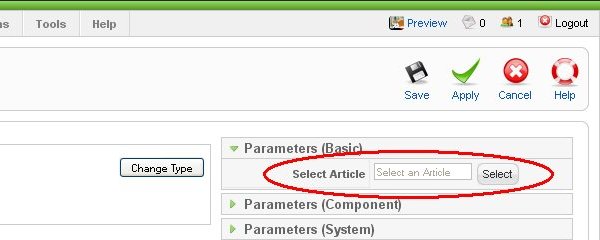
Step6: In Menu item editor, enter name of your menu item, let's called it 'MyItem', you can leave all fields at default values, but you must select which article you wish to assign to this menu item, so chose previously created article and save menu item.
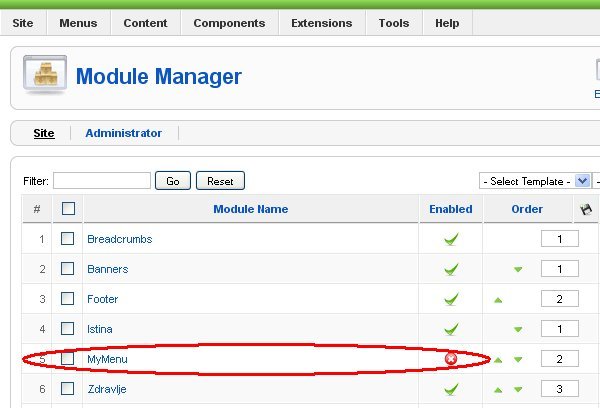
Step7: From main menu in administrator interface select Extensions/Module Manager, you should see 'MyMenu' module in list (if you don't see it at first try to browse to the next page). By default, new module that is assigned to your 'MyMenu' is disabled. Now to publish (or better said: to make it visible on your website) your entire menu with menu item and article just select 'MyMenu' module and click 'Enable' (by default, all new moduels/menus are disabled).
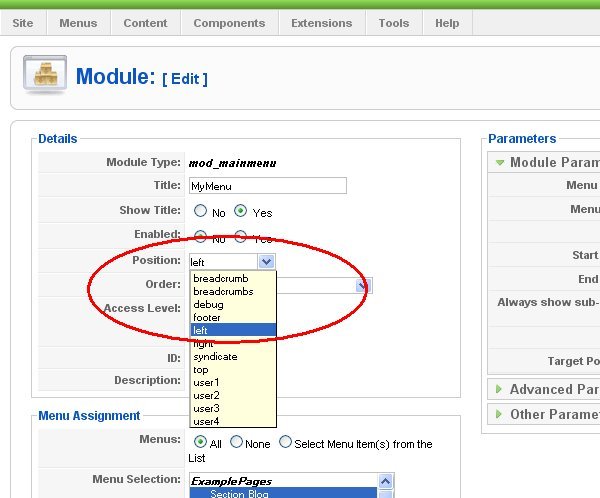
Step 8: If you wish to customize on which position menu will appear within your website menu layout, edit module 'MyMenu' and set position you desire (left is default).
That's it, if you are lucky you should see your article on your website!.
See list of all Joomla mini how to's from this site